The QR code in each room becomes a multilingual line between your property and your guests
- No app or sign-up when starting from the QR code
- Staff reply in their own language
- No devices needed in guest rooms
Start using it right after you sign up. With monthly billing, you can cancel anytime.


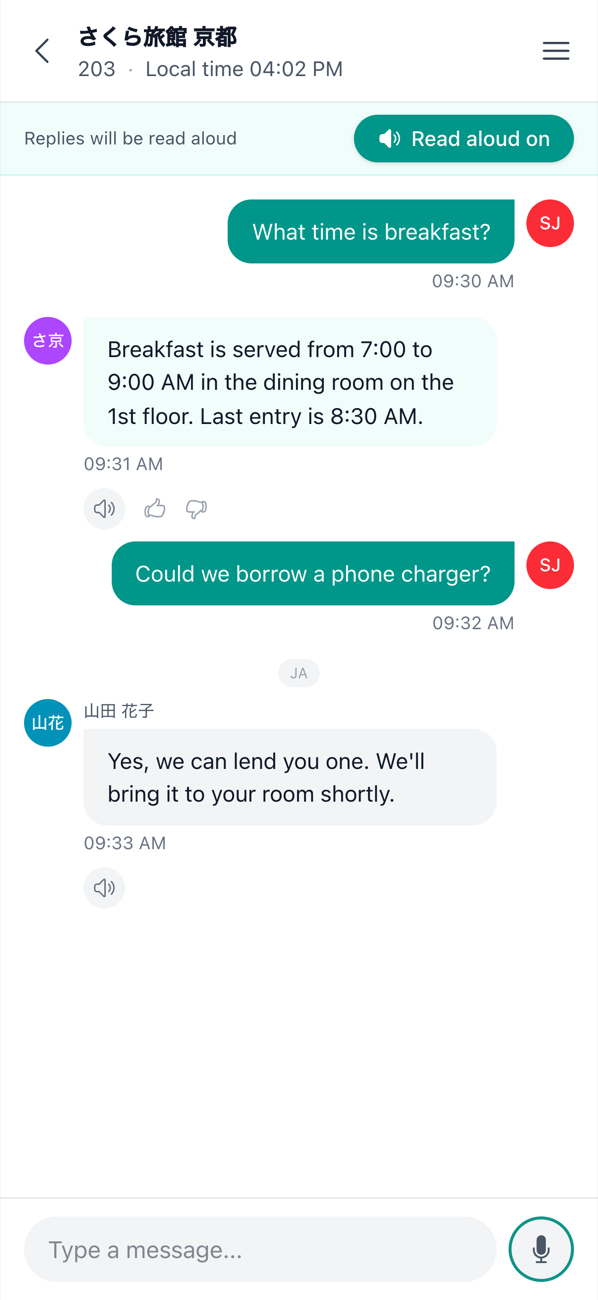
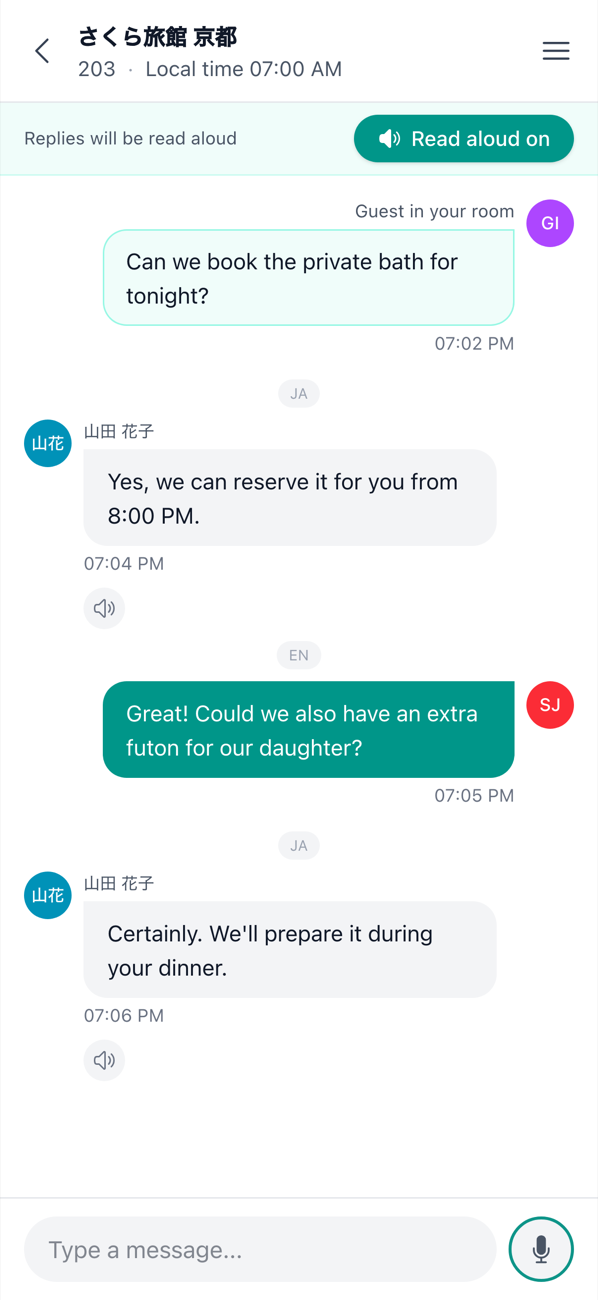
AI answers the common questions. Your staff handle the rest.
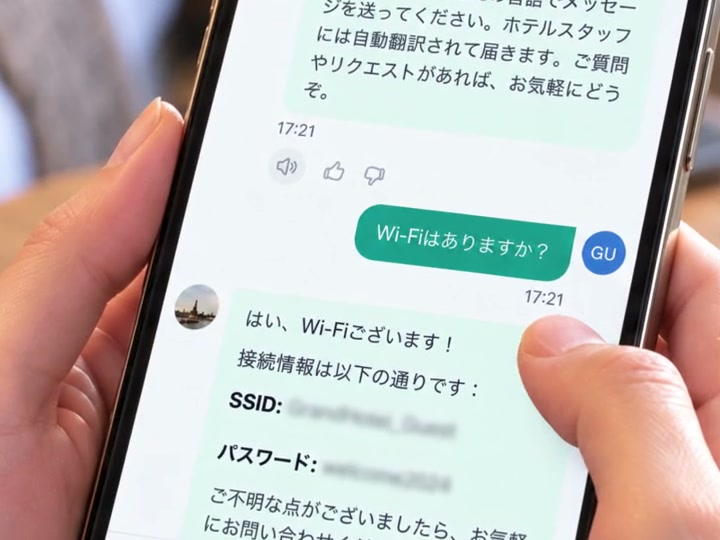
AI answers questions like Wi-Fi and breakfast right away
When a guest scans the QR code in their room and asks "Is there Wi-Fi?", the AI replies right away in their language, based on the answers you registered. Even late at night while your staff are off.

Questions the AI can't answer go to your staff
The guest is told right away that staff are checking. When your staff reply in their own language, the reply is translated into the guest's language.
There is a fire in the hallway!
I'm checking with the staff. Please wait a moment. We'll get back to you shortly. Due to a safety-related inquiry, a staff member will assist you directly.
Staff alert301 · Urgent: a guest needs help now
Emergency words alert your staff first
When a word like "fire" appears in any of the 15 languages, your staff get a top-priority alert and the guest is told that a staff member will help them directly. This works even when the AI is turned off.
Guests just scan a QR code
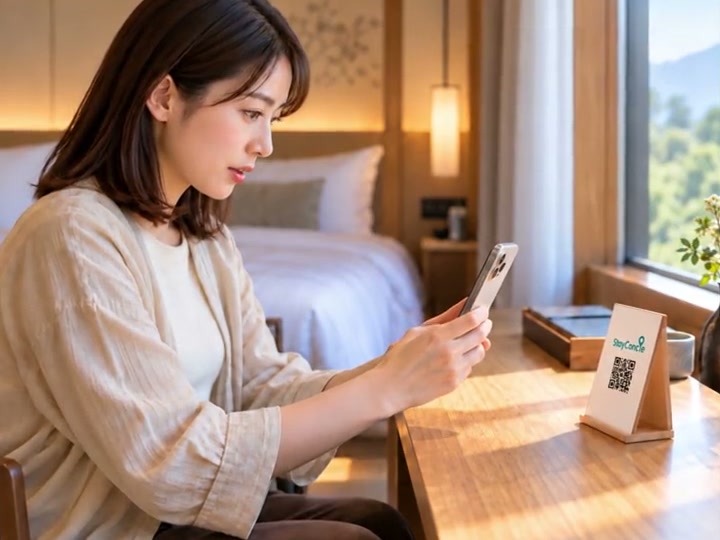
Scan the QR code
Scan the QR code in your room or at reception with your phone camera. Or tap the email link from your hotel.
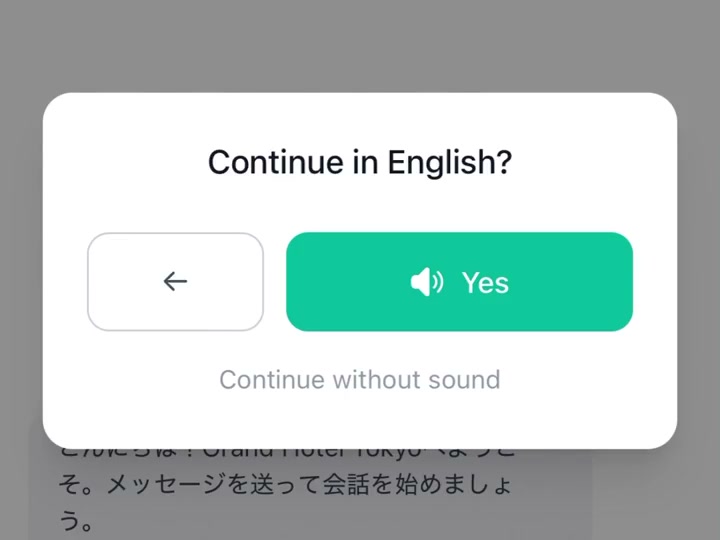
Choose your language
The screen first appears in the language set on the guest's phone (or in English if that language isn't supported). They can switch to any of the 15 languages.
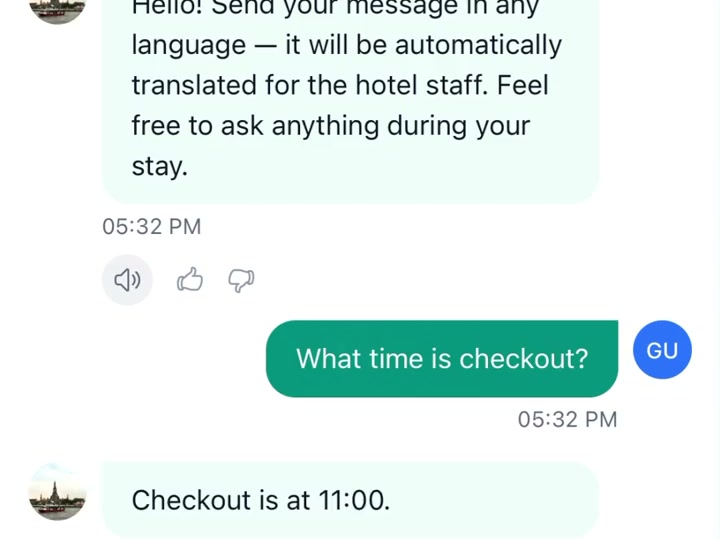
Chat in your native language
AI translates and responds instantly. If AI can't help, your inquiry is automatically handed off to hotel staff.
Guests ask questions in a chat, in their own language
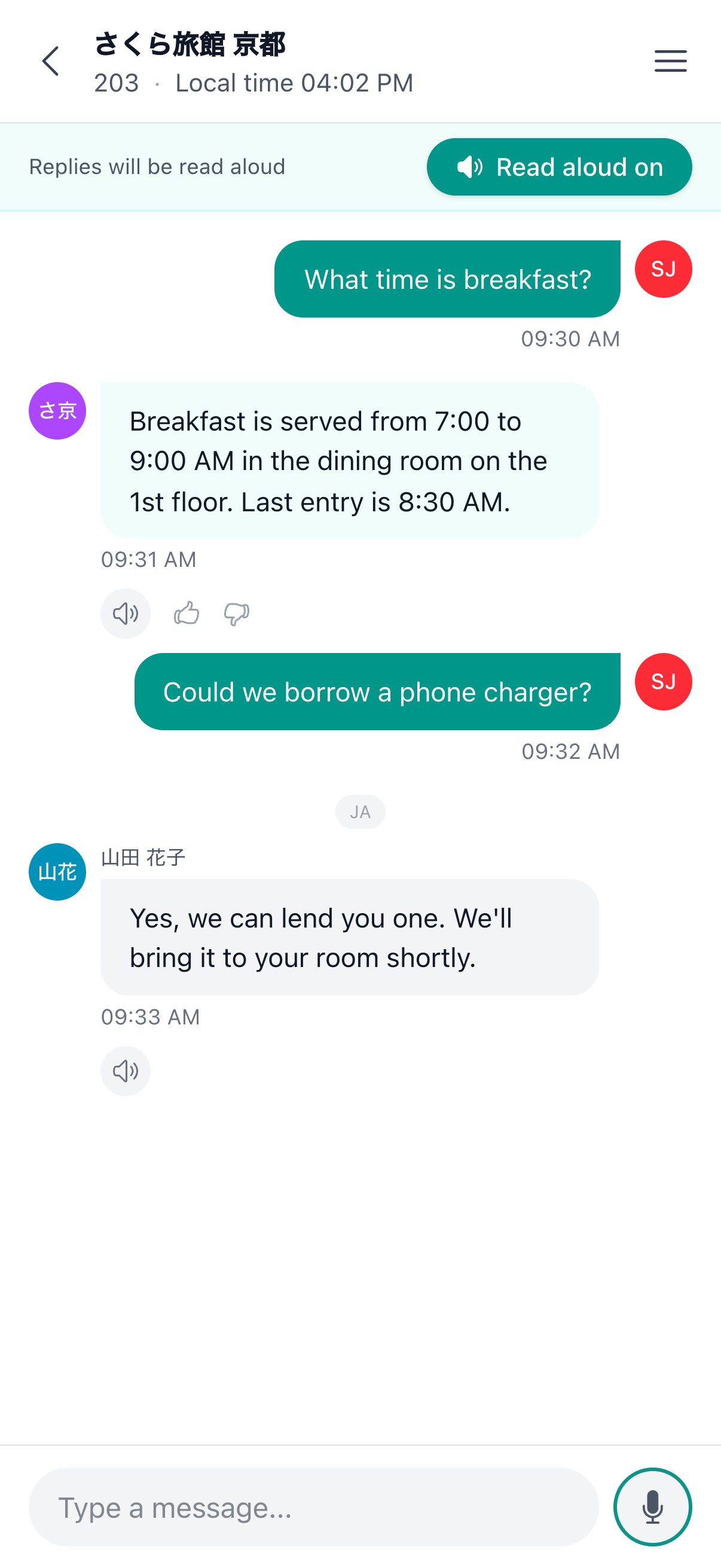
Ask in your language, get answers in your language
Staff replies are also shown translated into the guest's language.
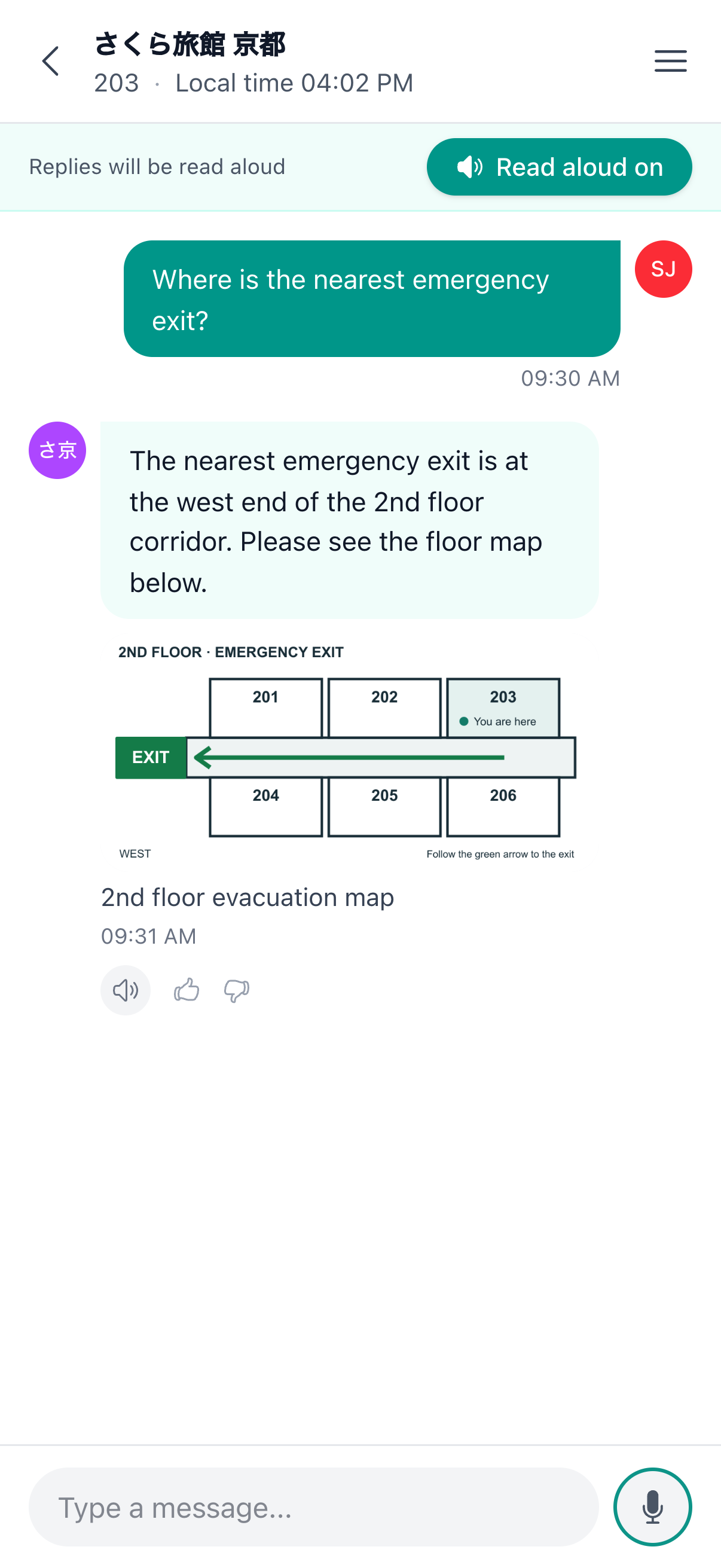
Answers can come with photos and maps
Like an evacuation map, you can show a different image depending on the room.
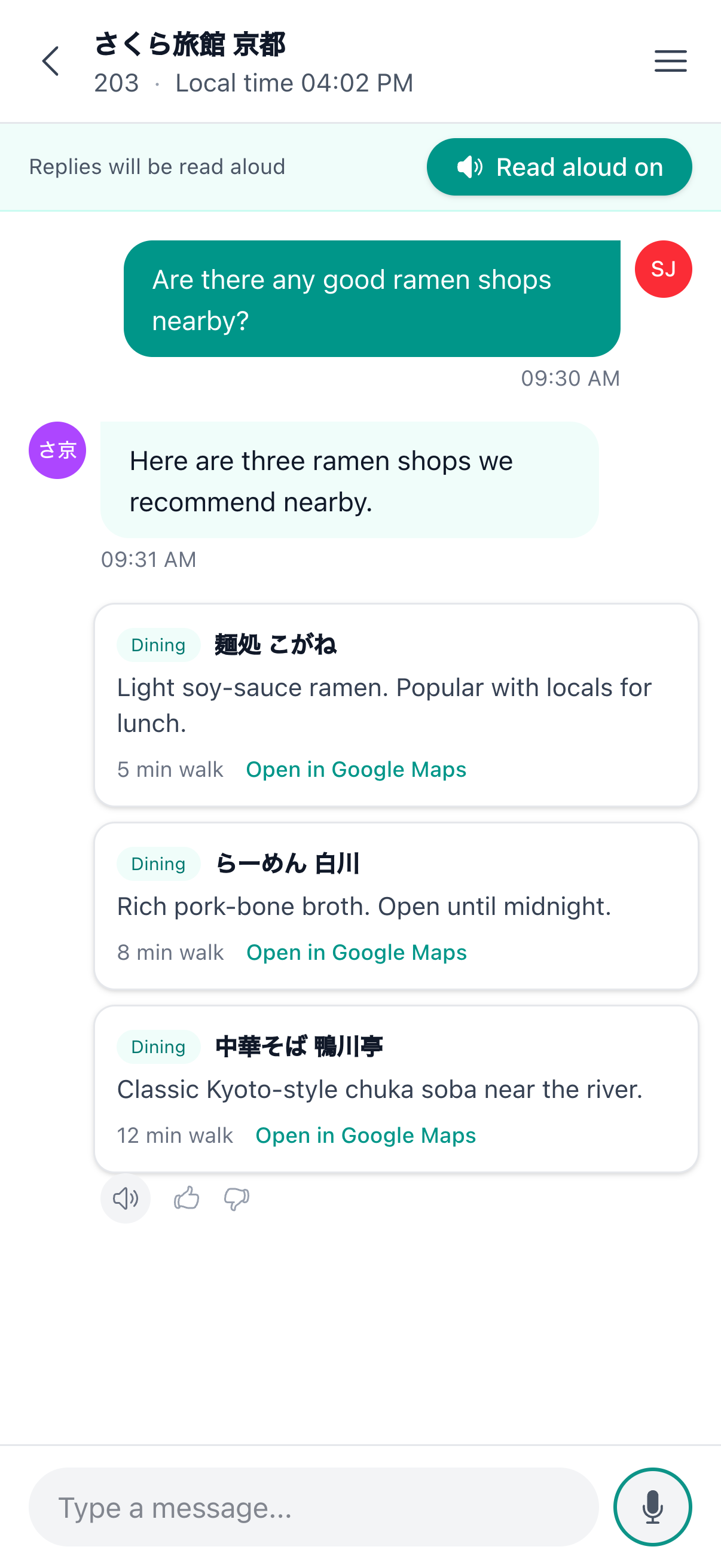
Recommend local spots with a map link
Each comes with the walking time and a Google Maps link. The reason for the recommendation is shown in the language of the guest who asked.
- Family in the same room can join the same chat
- Scanning the same room's QR code lets them join the same chat once someone already in the room approves.
- The next guest never sees the previous guest's chat
- Chats end automatically after check-out or after 24 hours without messages. The next person to scan the room's QR code starts a new chat.
- From before arrival to after check-out, in the same chat
- Guests who log in from an invitation email can ask questions before they arrive. Within 7 days after a chat ends, they can reopen it to ask about things like lost items.
Talk with your team and ask AI, on the same screen
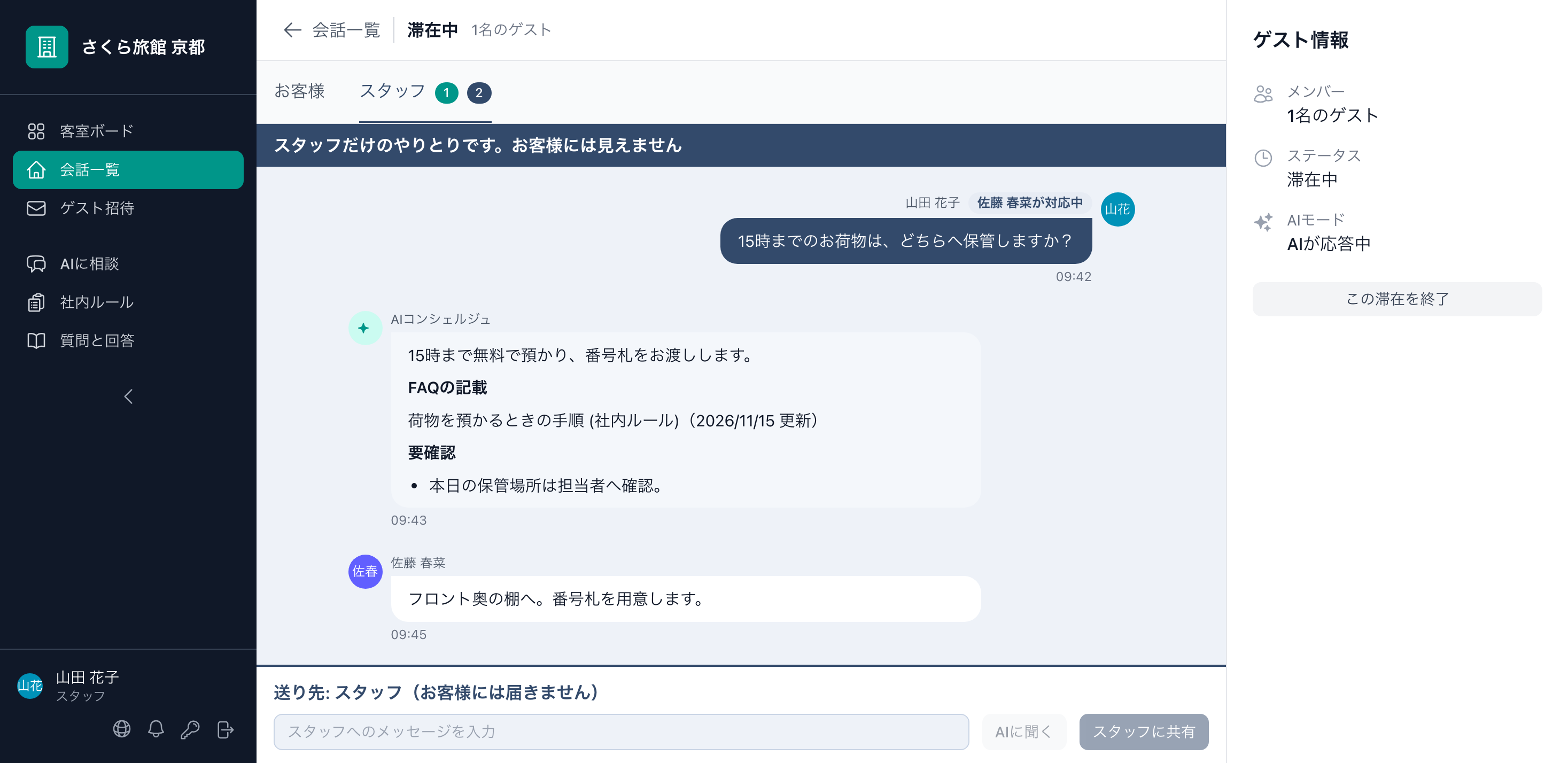
A staff-only section guests can't see
Each chat has a section only staff can see. Who is handling it and whether it is resolved are recorded too.
Guest replies and staff talk are kept separate
In the staff section, a notice at the top and in the input box says messages will not reach the guest.
AI answers show the internal rule they came from
When there's no record, it says so. It also points out what needs checking.
"Ask AI" also drafts a reply
It drafts a reply to the guest based on your internal rules and previously resolved questions.
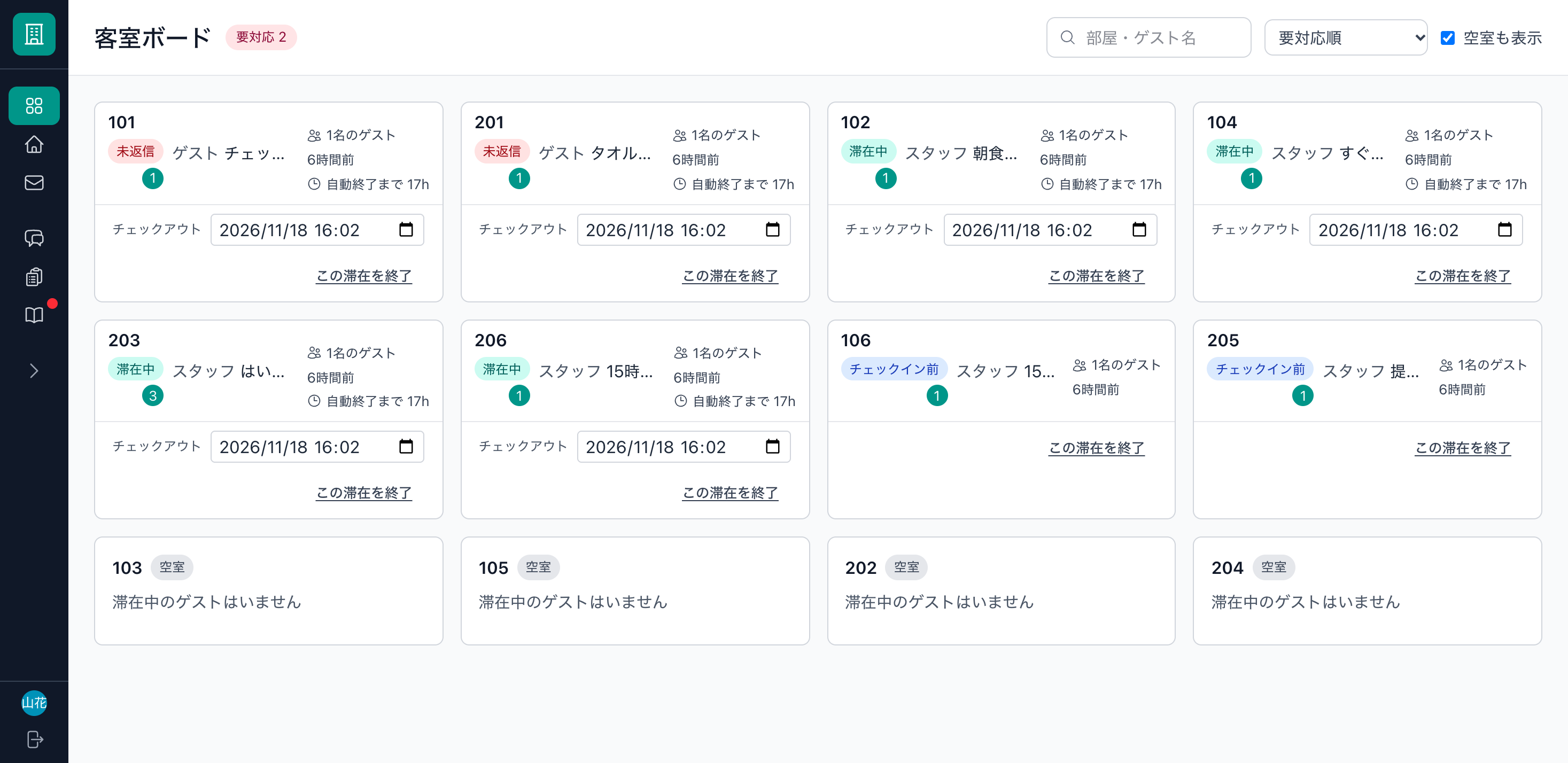
Notifications only when staff need to step in
They arrive in the smartphone app or the browser. If a guest question or a staff discussion stays open for 15 minutes or more, the owner is notified again.
The staff screens work in 15 languages
Reply in your own language and it reaches the guest in theirs. Staff from other countries can use it in their own language too.
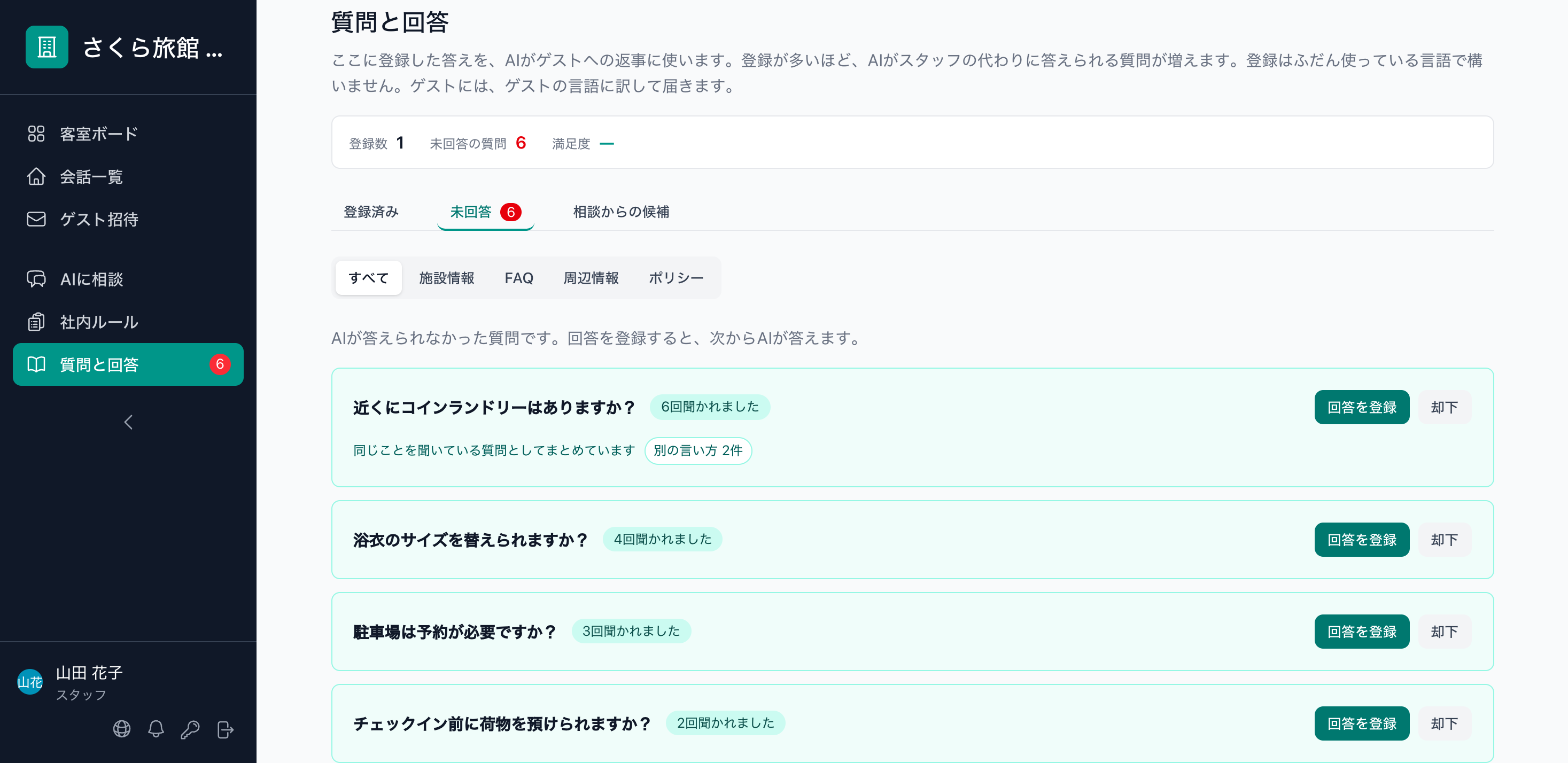
Questions the AI couldn't answer are listed by how often they were asked
- 1
Handoff to staff
Questions the AI can't answer go to your staff, and the guest is told that staff are checking.
- 2
List of unanswered questions
Listed by how often they were asked. The same question in different wording is grouped together, and a summary is emailed every Sunday.
- 3
Adding an answer
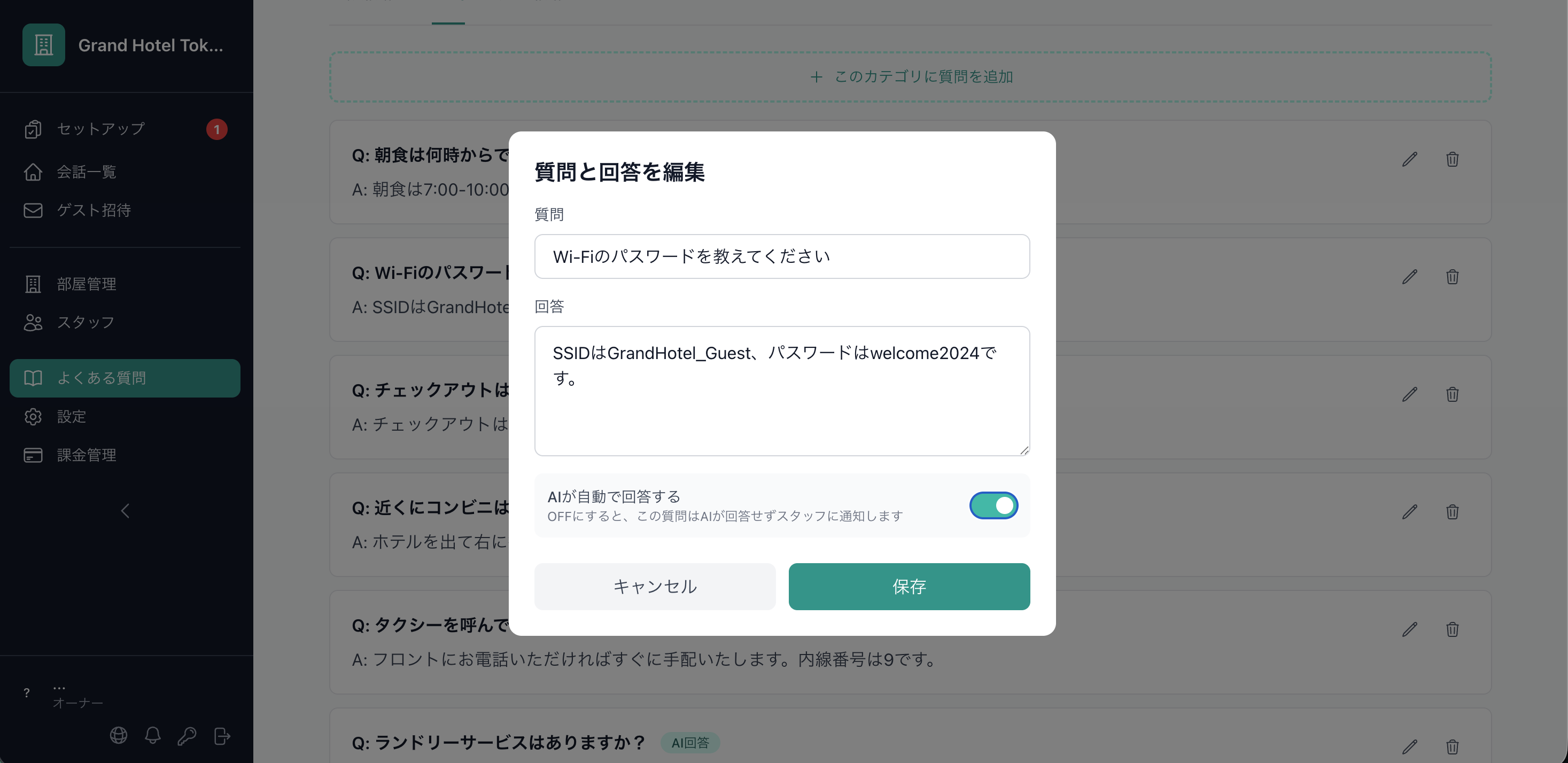
Suggested answers based on staff replies are offered, so you can pick one and add it.
- 4
Answered by AI
Next time the same question comes in, the AI answers it. Questions resolved among staff can also be reviewed and added as an answer for guests or as an internal rule.
Get started without putting devices in your rooms
With in-room devices
- Buy a device for every room
- Plan for breakage, loss, and theft
- Replace every few years; manage charging and OS updates
StayConcie
- No dedicated devices (guests use their own phones)
- Only a QR card in each room
- No replacements, no device management
You can print QR cards from the admin dashboard.
From your account to your first guest
Sign up
Create an account, enter your property details and choose a plan. Billing starts when you sign up.
Add answers to common questions
Common questions tailored to hotels, ryokan, and vacation rentals are ready for you, so you just fill in the answers. The AI replies based on them.
Add rooms and print QR codes
Enter your room numbers to create a QR code for each room. Print them as A6 cards, four per A4 sheet, or stickers.
Place the QR codes in your rooms
Put the printed QR codes in a card stand or stick them up in each room. No in-room devices are needed.
Guests start using it
Guests scan the QR code with their own phone and ask in their own language. Questions the AI can't answer go to your staff.
You can add or change common questions and rooms later in the dashboard.
Simple Pricing
Starter
$99/mo
Up to 30 rooms
Up to 3 staff
AI multilingual chat (15 languages)
Guests start chatting just by scanning a QR code
AI answers automatically from your registered answers
Staff consultations and asking the AI based on internal rules
Notifications for staff (browser and smartphone app)
1,000 AI credits/mo
Conversations saved for 90 days (after the conversation ends)
$2,851 with a 3-year plan (20% off)
Business
$249/mo
Up to 100 rooms
Up to 10 staff
All Starter features
Voice input & text-to-speech (STT/TTS)
5,000 AI credits/mo
Conversations saved for 1 year (after the conversation ends)
$7,171 with a 3-year plan (20% off)
Enterprise
$499/mo
Unlimited rooms & staff
All Business features
15,000 AI credits/mo
Conversations saved for 5 years (after the conversation ends)
$14,371 with a 3-year plan (20% off)